Edit and Customize the Navigation Drawer
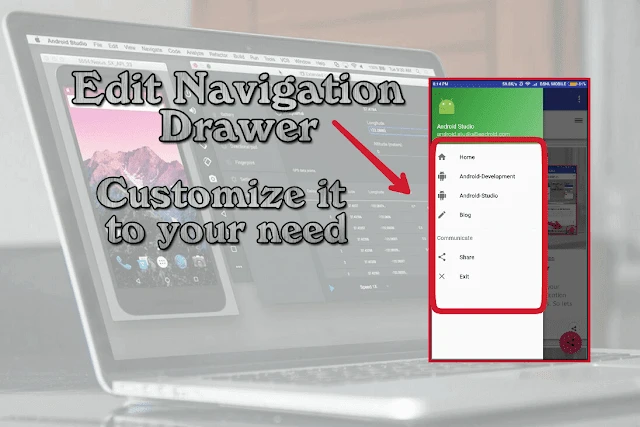 How to Edit and Customize the Navigation Drawer of the Navigation Drawer Activity. Watch the video and follow me properly.Watch the Video :
🎥 Embedded content (YouTube Video)
1. Open the previous project or if you haven’t seen our previous post check it at : Add Floating Share Option To Your Application
2. Open the menu folder and then activity_main_drawer.xml file{ See Above Video }3. Edit the icons and the name according to your wish* See how i add Vector images to the drawable file* Select the folder Drawable* Right click the mouse and select new then select Vector Asset* Select the image from those provided* Edit the ID
The ID you give must me same both in the Java codes and in the XML part.4. Go to MainActivity.java file and add the codes
* Links that are to be loaded when the options are clicked should be provided instead of https://www.codeseasy.com
5. Build the APK . Done .Java Codes :if (id == R.id.home) {
this.webView.loadUrl("https://www.codeseasy.com");
} else if (id == R.id.androiddev) {
this.webView.loadUrl("https://www.codeseasy.com");
} else if (id == R.id.androidstudio) {
this.webView.loadUrl("https://www.codeseasy.com");
} else if (id == R.id.blog) {
this.webView.loadUrl("https://www.codeseasy.com");
} else if (id == R.id.share) {
final Intent intent = new Intent("android.intent.action.SEND");
intent.setType("text/plain");
intent.putExtra("android.intent.extra.SUBJECT","Codes Easy");
intent.putExtra("android.intent.extra.TEXT","Add your text to be shared here and a link of your application so that others can download it .");
startActivity(intent.createChooser(intent,"Share :"));
} else if (id == R.id.exit) {
new AlertDialog.Builder(this)
.setTitle("Exit")
.setMessage("Are you sure to exit ?")
.setPositiveButton("Yes", new DialogInterface.OnClickListener() {
@Override
public void onClick(DialogInterface dialog, int which) {
finish();
}
})
.setNegativeButton("No", null)
.show();
}That’s all on how to Edit and Customize the Navigation Drawer of your Navigation Drawer Activity. On the next posts we would see how to edit the image and the text’s in the top part of the navigation drawer.
Related Posts

Razorpay Integration in Android
Updated Dec 26, 2025

Parsing JSON Data in Android
Updated Dec 26, 2025

How to Install Android Studio on Windows
Updated Dec 26, 2025
Comments (1)
Leave a Comment
7 years ago
Utterly written subject matter, appreciate it for information .
7 years ago
Sorry for that we are going to update our websites soon.